Before you start
Three quick things to have ready:
- A Firestick (any model), Fire TV, or Android TV box plugged in and online.
- The Downloader app already installed on it. (If you don't have it, search the Amazon App Store for "Downloader" — it's the orange icon with a downward arrow.)
- The three login details I sent you privately: a server URL, a username, and a password.
Install Sparkle Player
Use the Downloader app to grab Sparkle Player straight from its install code.
Open Downloader on your Firestick. You'll see a URL bar in the middle of the screen.
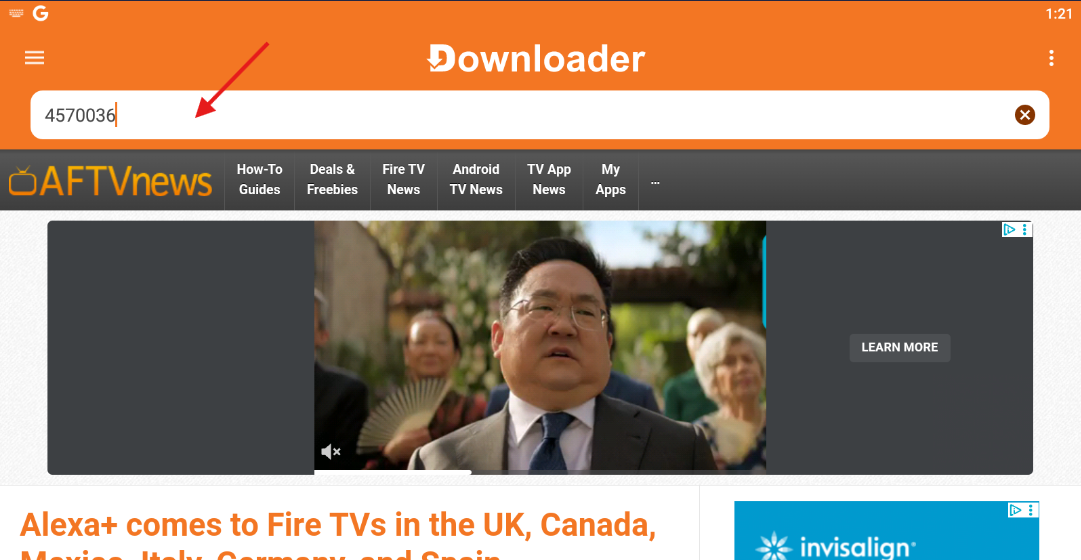
In that URL bar, type in this code and press Go:
Downloader will fetch the installer, then ask you to install. Click through and let it finish — when it's done, you'll see Sparkle Player as a real app.

Press the Home button on your remote to go back to the home screen. Then go to Your Apps & Channels (or "See All" on Android TV) and open the new Sparkle Player app you just installed.
Add your channels
Tell Sparkle where to find the channels using the login details I sent you.
On the first screen, click Add new source.
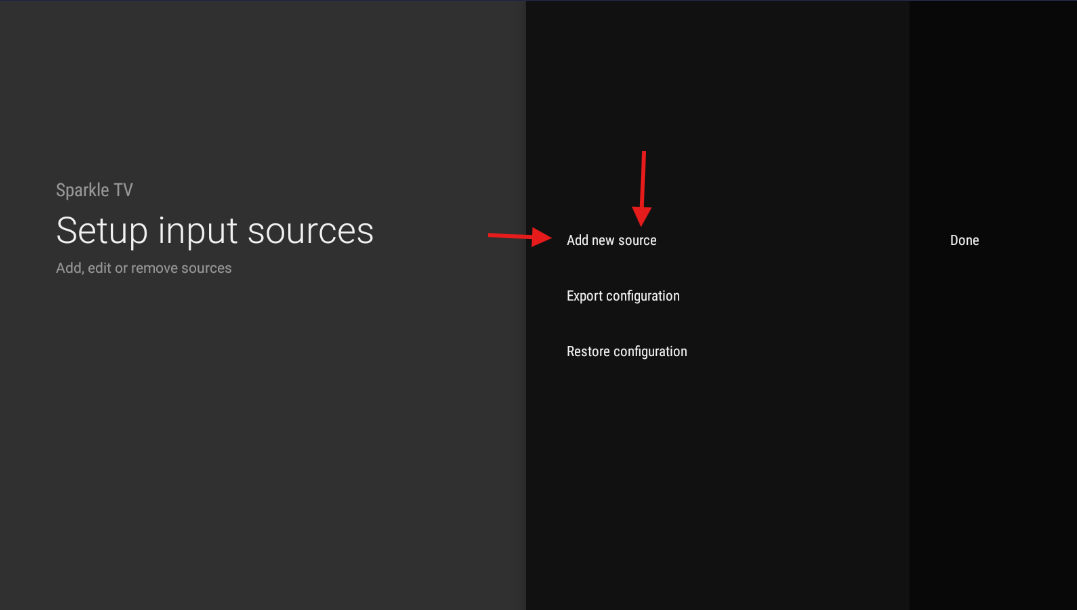
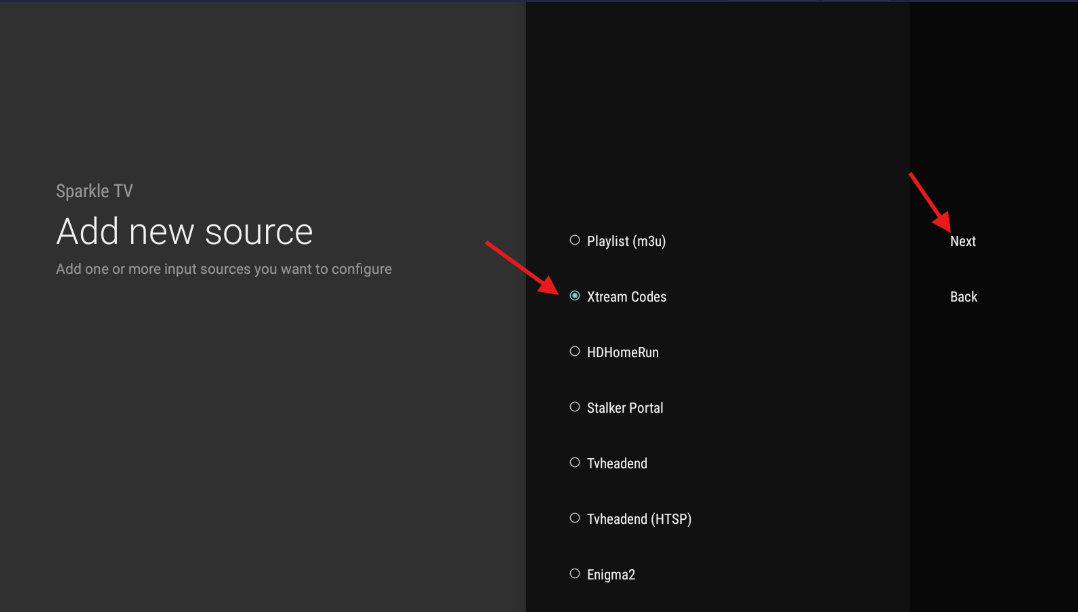
Select Xtream Codes, then click Next.
Now type in the three details I sent you:
Leave everything else on this screen as it is, then click Next.
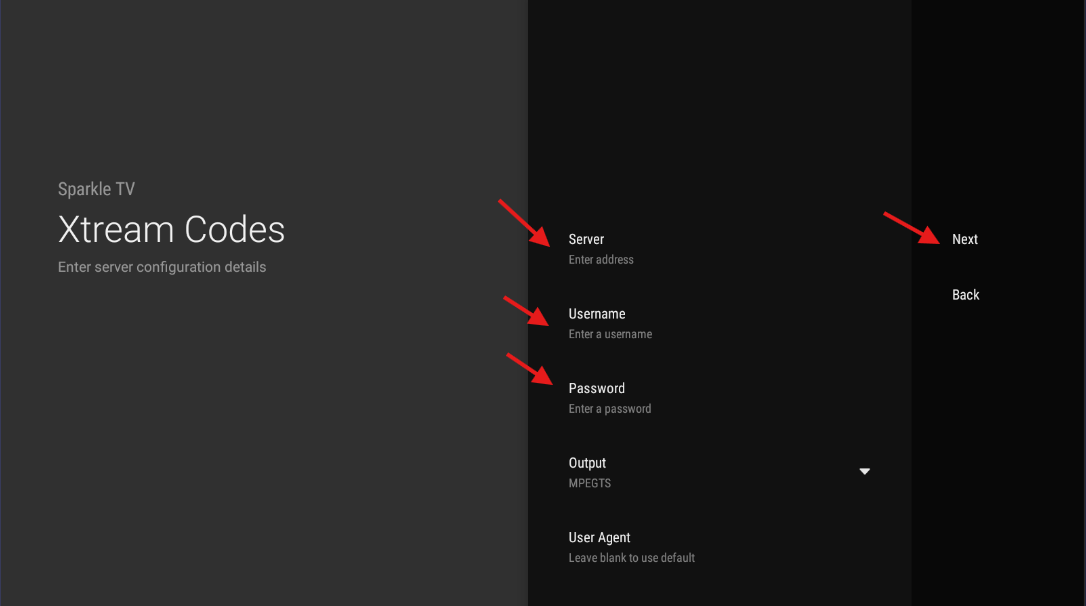
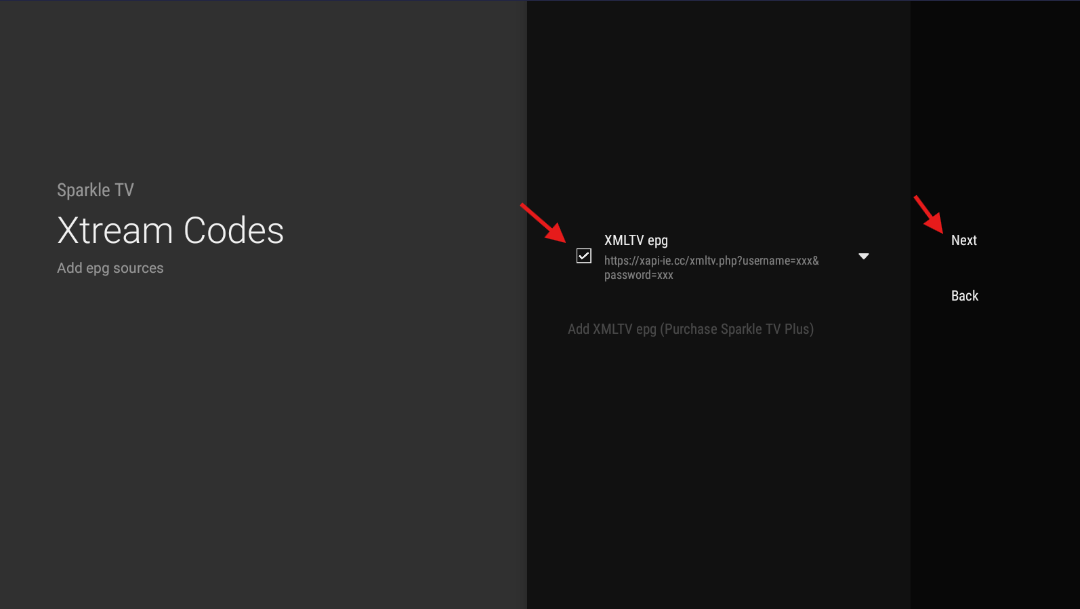
{curly} placeholders above are stand-ins. Use the real values from the text I sent you.Make sure XMLTV EPG is selected (this is what gives you the program guide), then click Next.
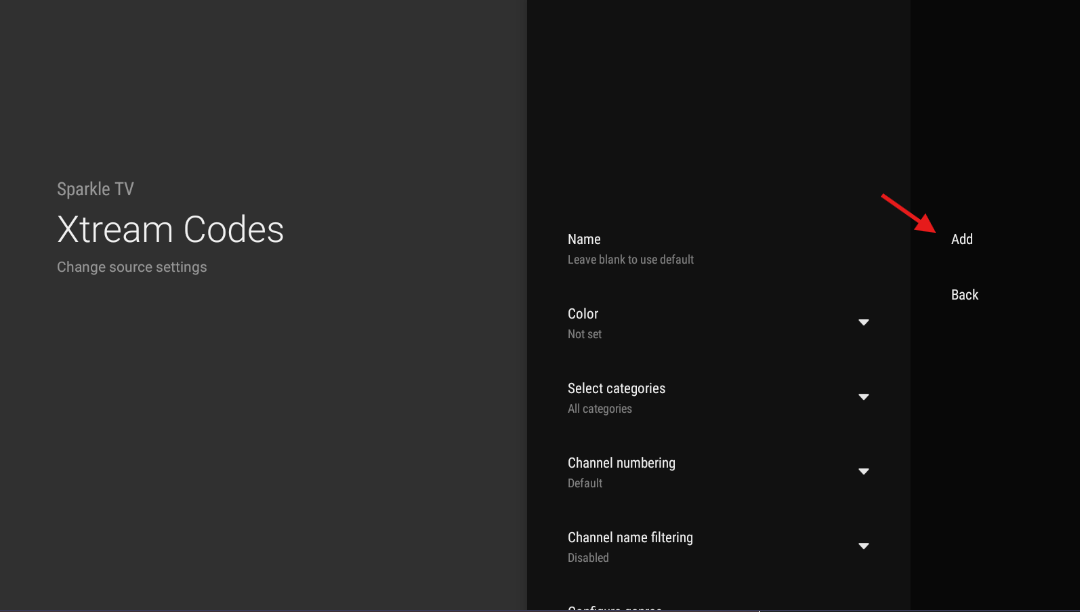
On the next page, leave every setting exactly as it is and click Add.
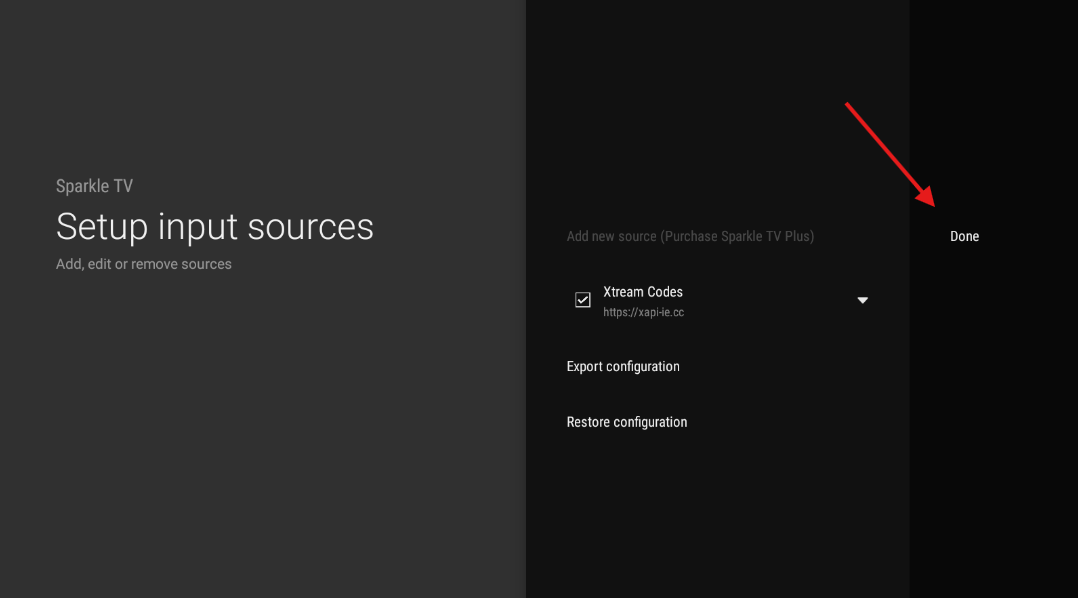
You'll see a confirmation screen. Hit Done.
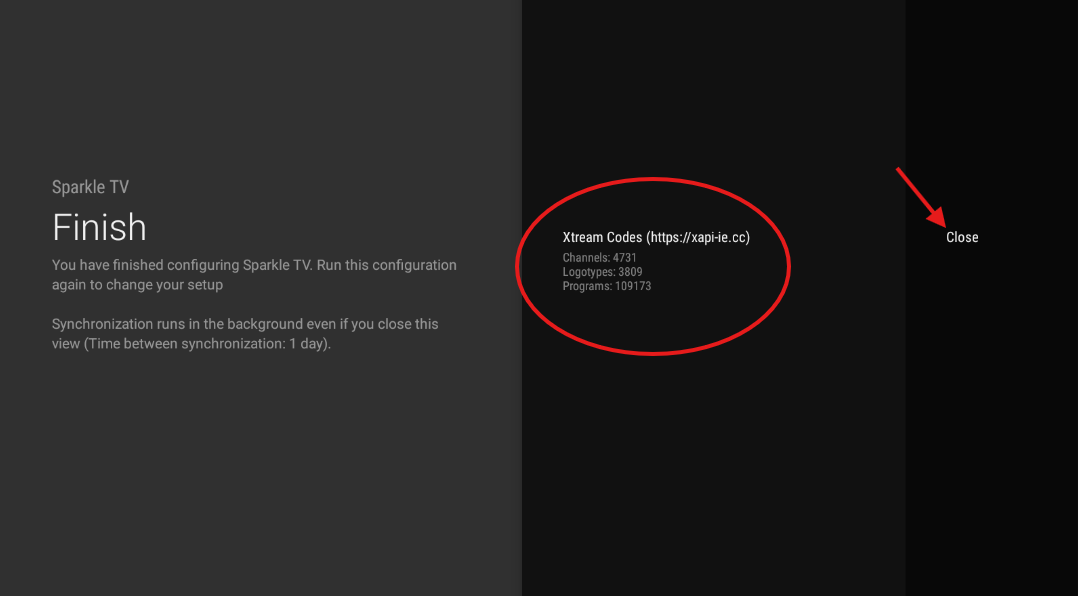
Sparkle now goes off and loads your channels, channel logos, and programs. Give it a minute — it's downloading a lot. When it finishes, click Close.
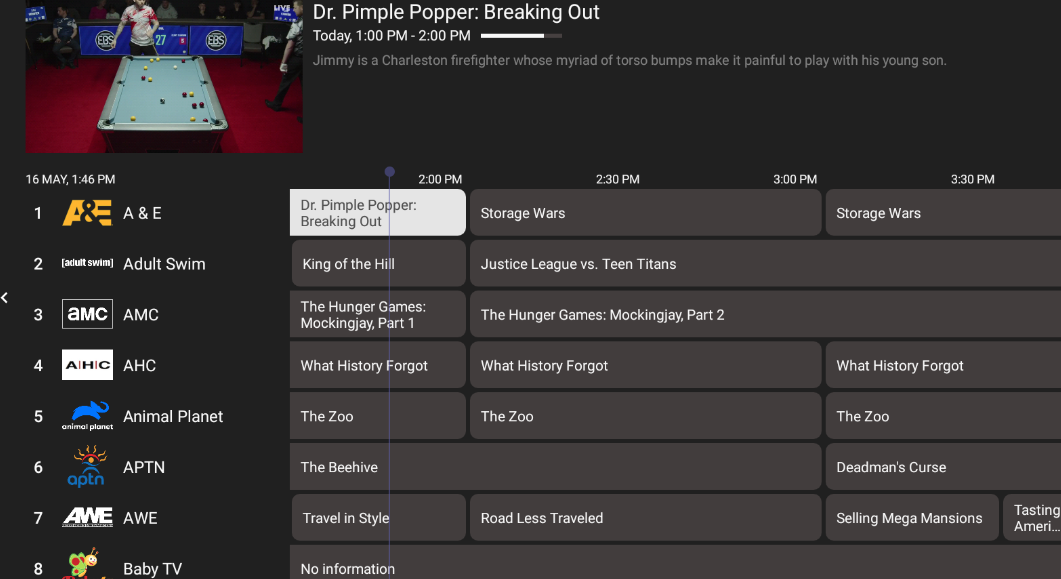
Tune the interface
The default layout is fine, but a few quick toggles make finding what's on a lot easier.
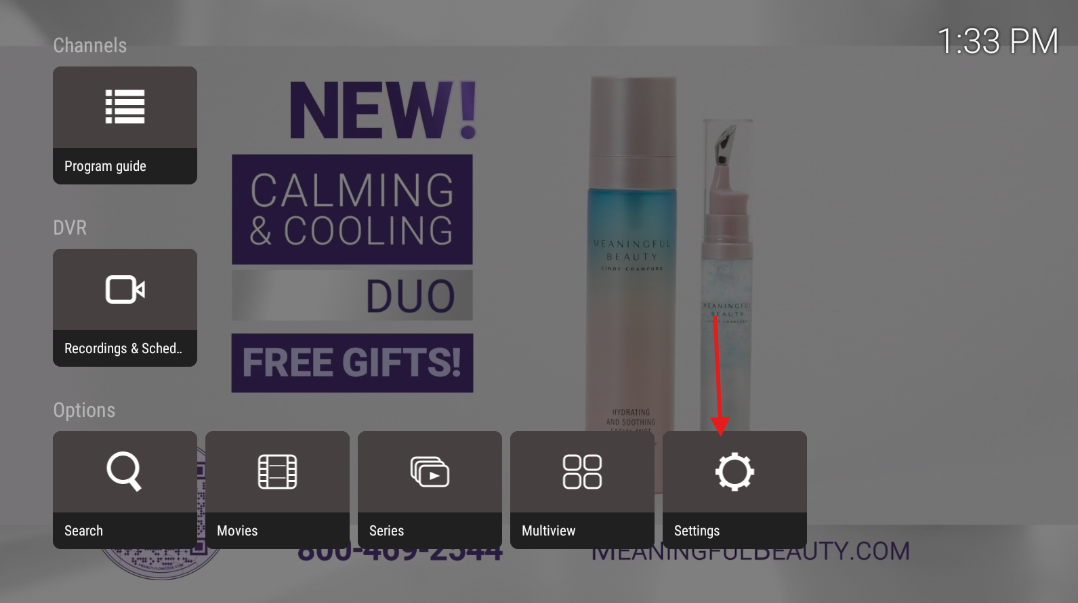
While watching any channel, press OK on your remote. A menu slides up. Scroll down to Settings and click it.
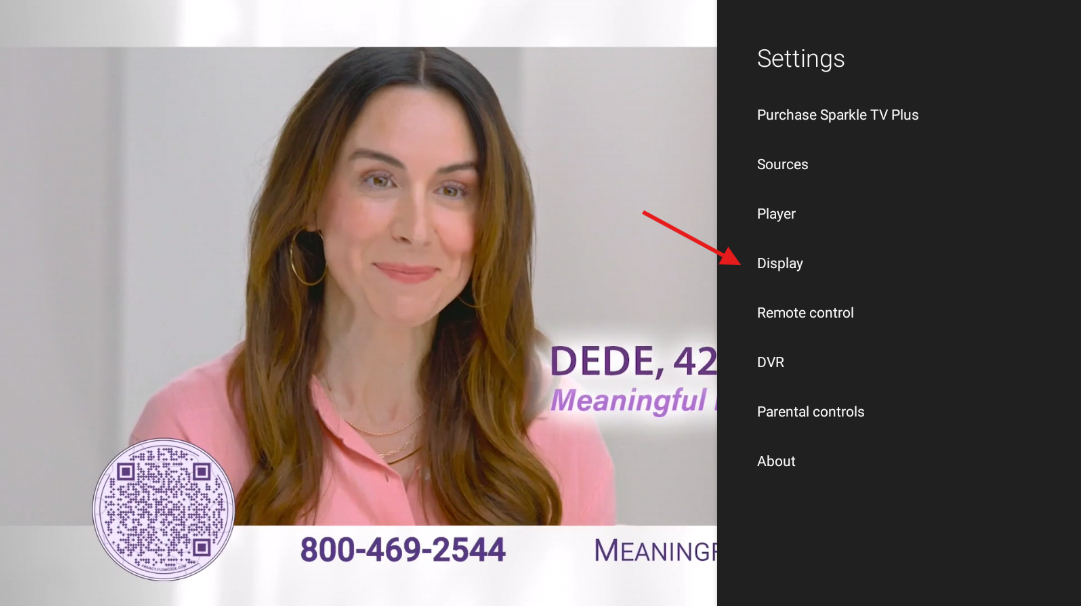
Inside Settings, navigate:
Display›Guide
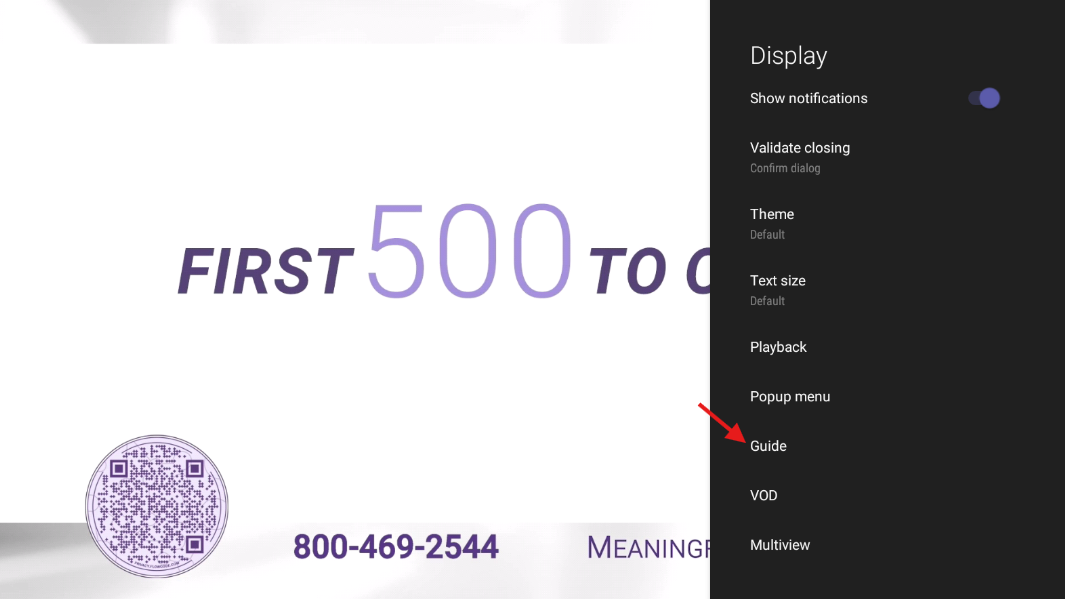
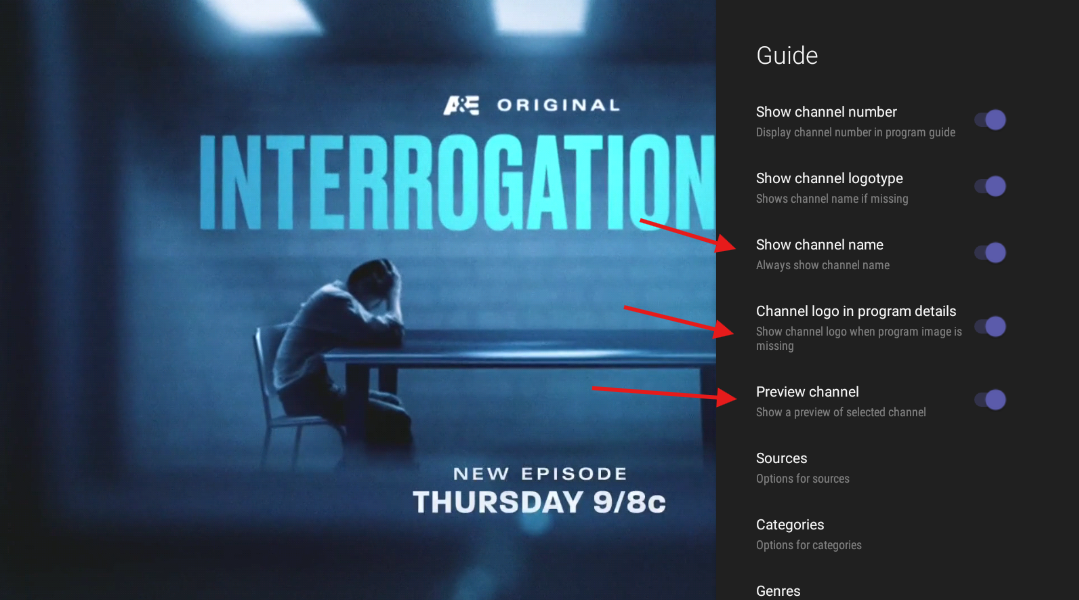
Turn these three on:
- Always show channel name
- Channel logo in program details
- Preview channel
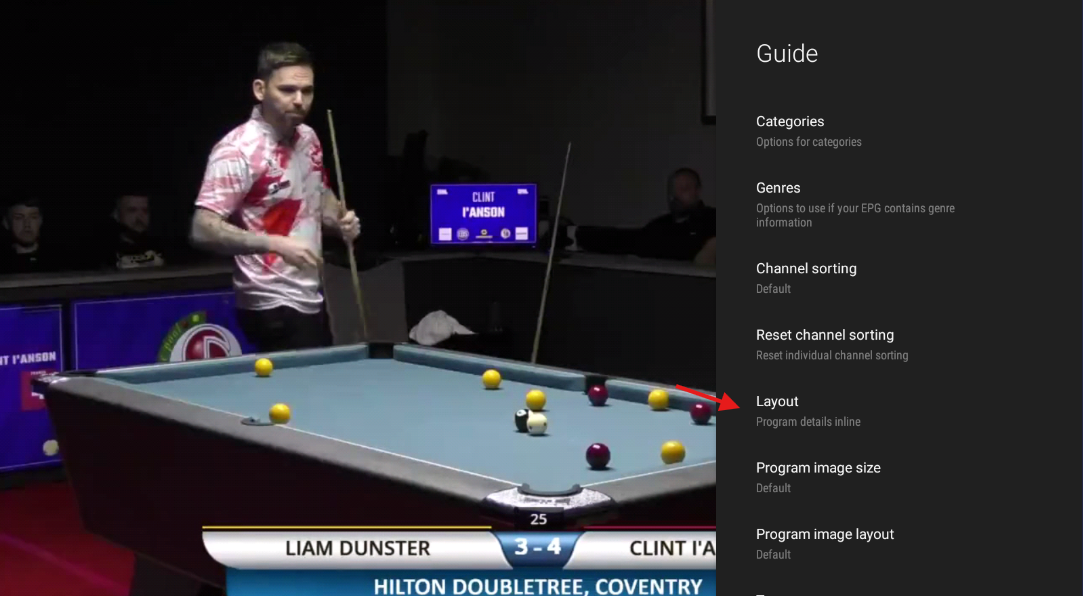
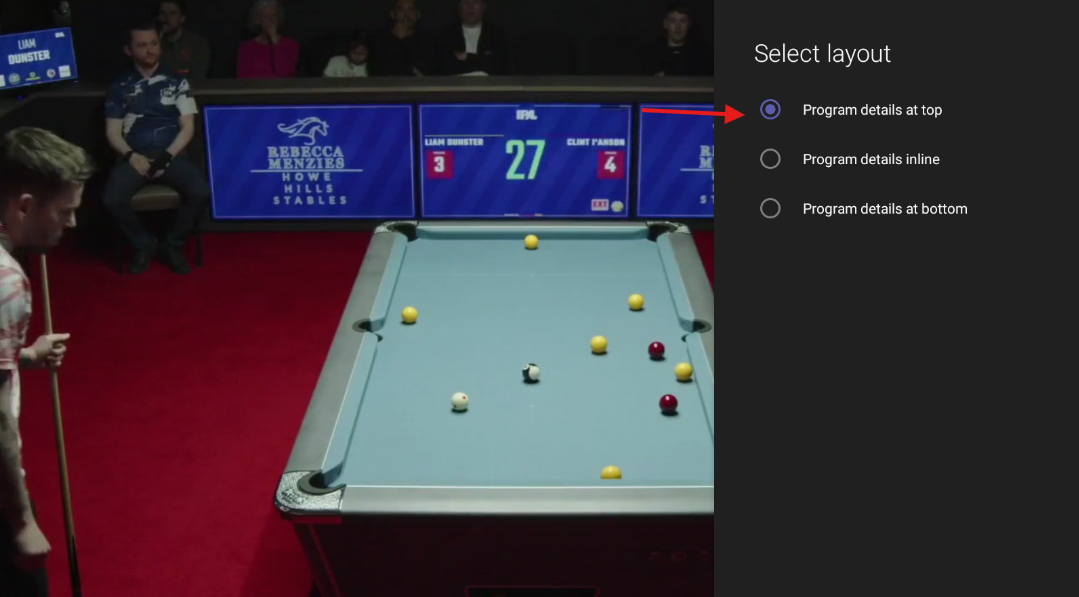
Still on the same page, find Layout and set it to Program details at top.
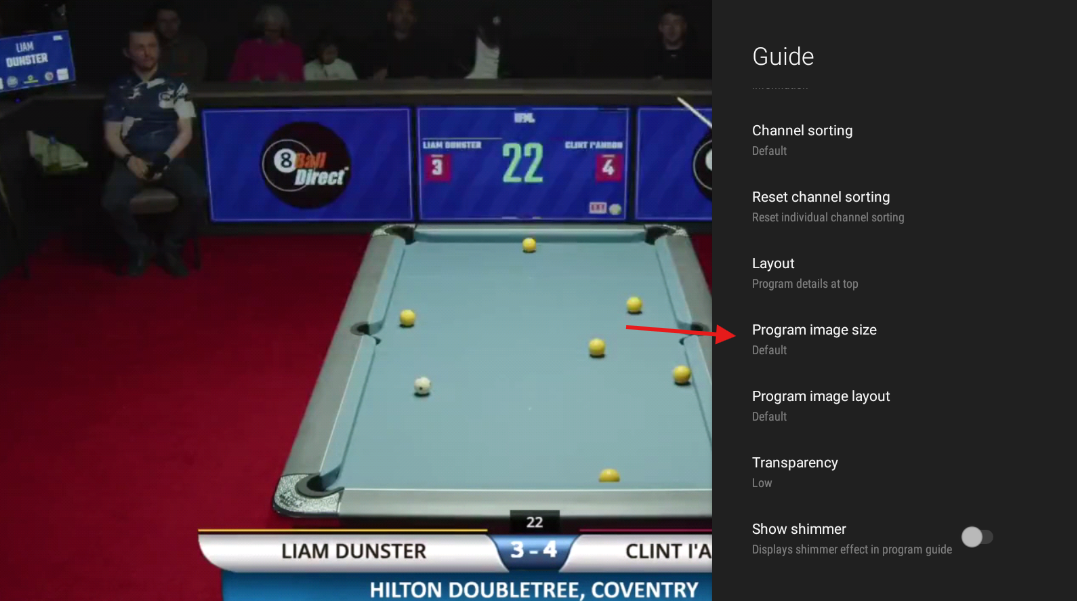
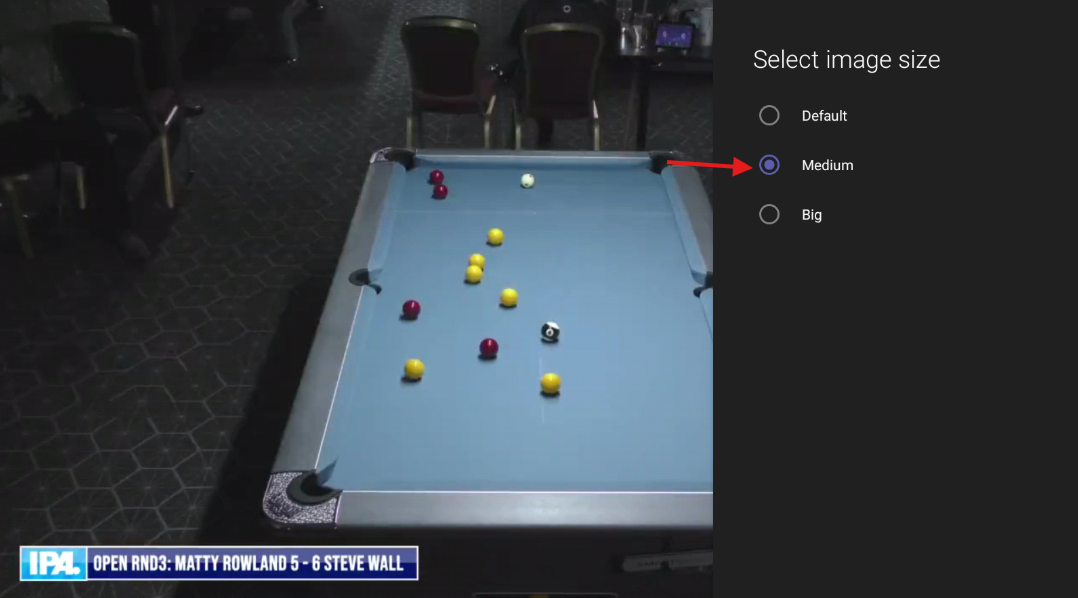
Finally, find Image size and pick Medium.
Remote tips
A few things that aren't obvious if you've never used Sparkle on a TV remote.
Change channels: use the up / down on the navigation ring of your remote while watching anything. It works the way it should.
Hate typing on the remote? Install the Amazon Fire TV app on your phone (free, App Store / Play Store). It pairs with your Firestick and lets you use your phone's keyboard for anything that needs typing — the Downloader code, search, etc.
Pause and rewind live TV (Timeshift): Sparkle can do this, but it needs somewhere to save the buffer first. Go to Settings›Timeshift and pick a storage location. After that, the pause button on live channels works.
Clean up your channel list: long-press OK on any channel to favorite it, hide it, or move it into a category. If there's a chunk of channels you never watch, hide the whole category from Settings›Categories.
Quick search: from the main screen, the magnifier icon searches across channels and the program guide — handy for finding a movie that's playing somewhere on a channel you don't usually watch.
You're done
That's the whole thing.
Channels load, the guide is tidy, the remote behaves. If something looks off, text me — happy to walk through it.